
Follow-up Email - User Guide
A step-by-step guide to setting up and running lifecycle email campaigns with MageAustralia_FollowupEmail. This guide is written for store administrators; no developer knowledge is required to use the features described here.
The module turns store events (an abandoned cart, an order shipping, a new registration, a birthday) into automated, on-brand emails. Each email is built from a rule you create in the admin, queued for delivery, and rendered with optional coupons, product recommendations, and AI-written subject lines.
Contents
- How it works
- Installation
- Global configuration
- Managing rules
- Creating a rule, tab by tab
- Trigger reference
- The send queue
- Performance report
- Email templates and power directives
- Tracking and unsubscribe
- Automation (cron)
- Integrations
- Troubleshooting
1. How it works
There are three moving parts:
TRIGGER -> enqueue a row -> QUEUE -> cron sends the due rows- A trigger fires (an event such as "order shipped", or a scheduled scan such as "carts idle for an hour"). The module checks every active rule that listens for that trigger.
- For each matching rule, the recipient's conditions are evaluated. If they pass, one queue row is enqueued per step in the rule's email chain, scheduled for
now + delay. Any coupon is minted at this moment, so the code stays stable for that recipient even if they open the email later. - A cron job runs every few minutes, picks the rows that are now due, renders each email (cart contents, coupon, recommendations, brand colours, tracking links), and sends it. Failed sends are retried up to three times.
Before each send the module re-checks that the rule is still active and the recipient has not unsubscribed, so a stale or unwanted email never goes out.
2. Installation
composer require mageaustralia/maho-module-followup-email
composer dump-autoload -o   # compiles the routes, cron jobs and observers
php maho cache:flush
composer dump-autoload -ois required. Maho uses an optimised classmap autoloader and the triggers, cron jobs and tracking routes are registered through PHP attributes that only become active once the classmap is rebuilt. Until you run it, rules will not fire and the admin menu will not appear.
The setup script creates three tables: maho_followup_rule, maho_followup_queue, and maho_followup_unsubscribe.
Requirements: Maho 26.3+ (PHP 8.3+). The AI, recommendations and stock-alerts integrations are all optional and detected automatically when present.
3. Global configuration
Go to System > Configuration > Customers > Follow-up Email.
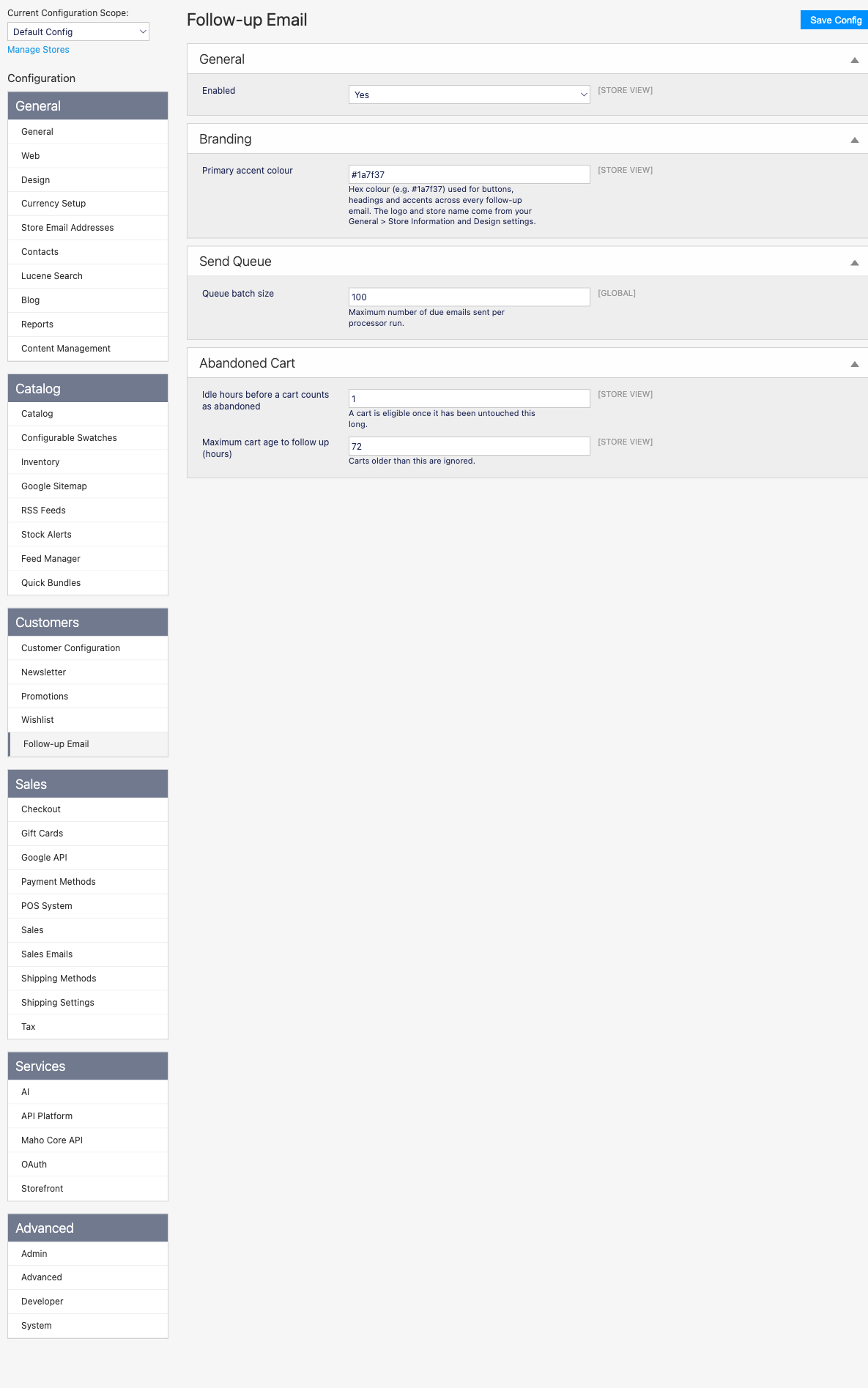
| Group | Setting | Default | What it does |
|---|---|---|---|
| General | Enabled | Yes | Master on/off switch for the whole engine. |
| Branding | Primary accent colour | #1a7f37 | Hex colour used for buttons, headings and accents in every email. The logo and store name come from your existing General > Store Information and Design settings, so emails match your storefront automatically. |
| Send Queue | Queue batch size | 100 | Maximum number of due emails sent per cron run (also caps the abandoned-cart scan). |
| Abandoned Cart | Idle hours before a cart counts as abandoned | 1 | A cart becomes eligible once it has been untouched this long. |
| Abandoned Cart | Maximum cart age to follow up (hours) | 72 | Carts older than this are ignored, so you never chase a week-old cart. |
All settings can be overridden per website or per store view.
4. Managing rules
Open Follow-up Email > Rules from the admin menu. The grid lists every rule with its trigger, active state and priority. Use Add New Rule to create one, or click a row to edit it.
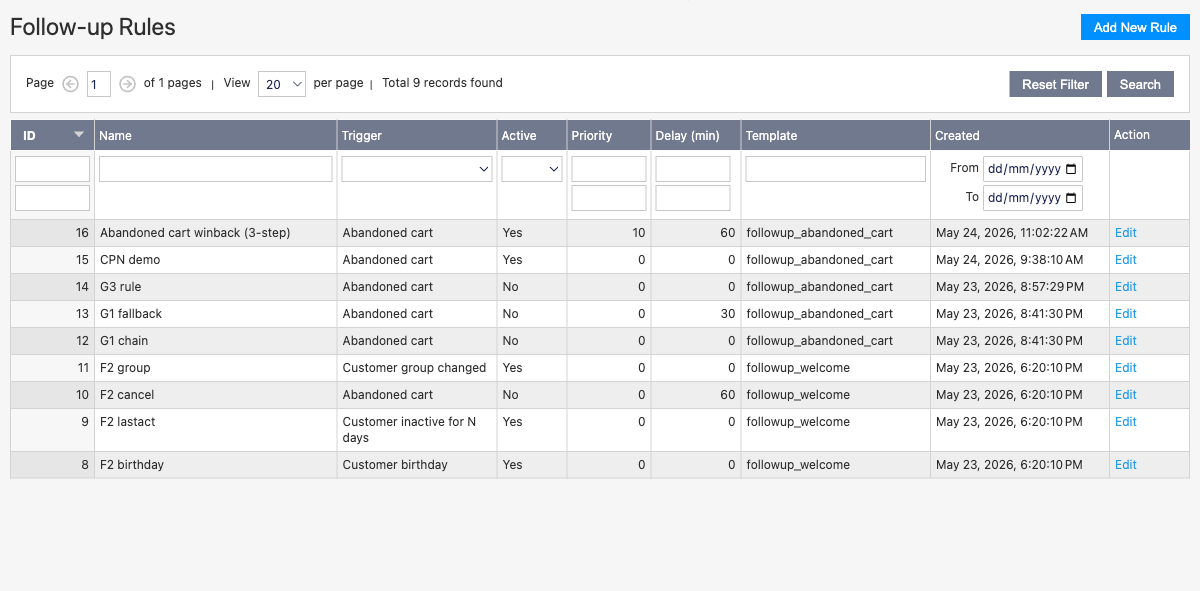
When several rules match the same event, priority decides the order (lower numbers run first).
5. Creating a rule, tab by tab
A rule is edited across eight tabs. Only the General and Emails tabs are required; the rest are optional refinements. Use Save and Continue Edit to keep working, or Save to return to the grid.
5.1 General
Identity, schedule, and what fires the rule.
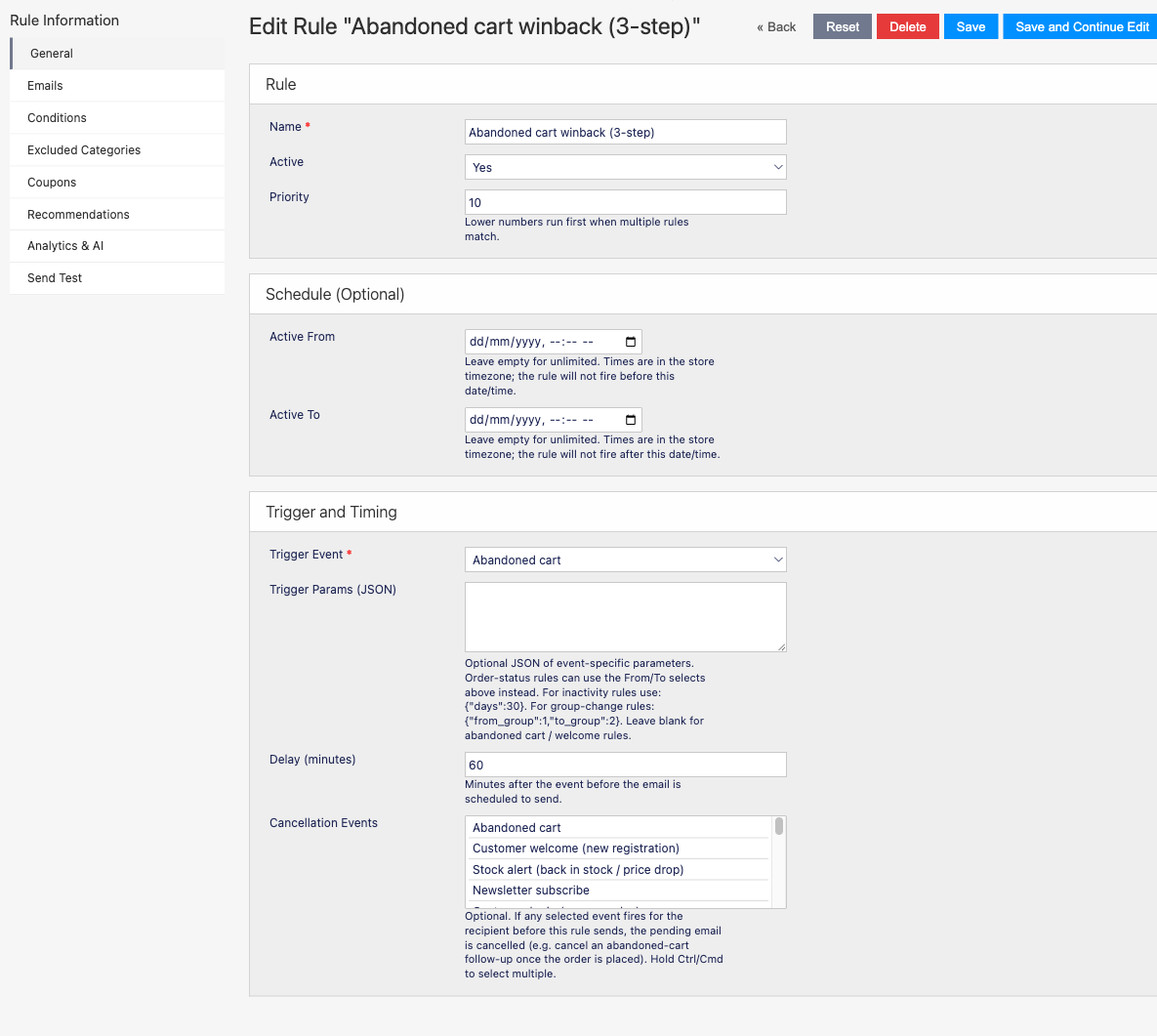
- Name - shown in the grid and the performance report.
- Active - set to No to pause a rule without deleting it.
- Priority - lower numbers run first when multiple rules match.
- Schedule (Optional) - Active From / Active To limit the rule to a date window (for a seasonal campaign, say). Times are in the store timezone. Leave either bound empty for "no limit".
- Trigger Event - the event that starts the rule. See the trigger reference for the full list.
- Order Status: From / To - shown only when the trigger is Order status change. The rule fires when an order moves to the chosen status (optionally from a specific prior status).
- Trigger Params (JSON) - advanced, event-specific options. For an inactivity rule use
{"days":30}; for a group-change rule{"from_group":1,"to_group":2}. Leave blank for abandoned-cart or welcome rules. - Delay (minutes) - how long after the event the first email is scheduled.
- Cancellation Events - if any selected event later fires for the same recipient, this rule's still-pending emails to them are cancelled. The classic use is cancelling an abandoned-cart follow-up the moment the order is placed, so the shopper never gets a "you left something behind" email after buying.
5.2 Emails (the drip chain)
How and when the emails are sent.
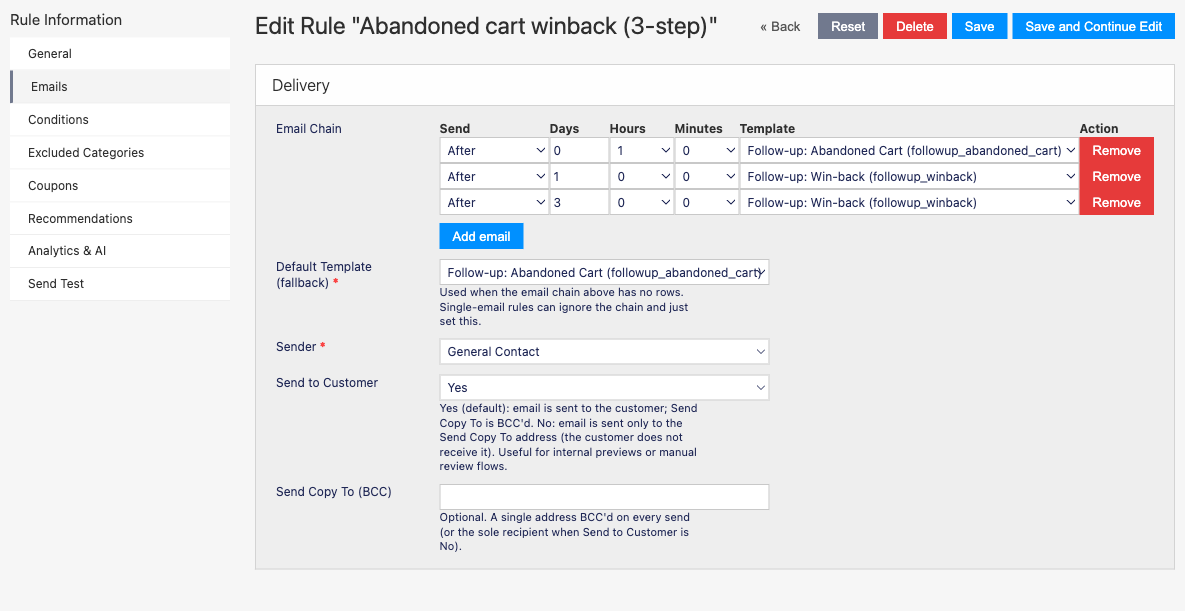
- Email Chain - build a multi-step drip sequence. Each row is one email with its own offset (Days / Hours / Minutes after, or before, the trigger) and its own template. Add email appends a step; Remove deletes one. The example above sends three emails: 1 hour, 1 day, and 3 days after a cart is abandoned.
- Default Template (fallback) - used when the chain has no rows. A simple single-email rule can ignore the chain and just set this.
- Sender - the store email identity the message is sent from (General Contact, Sales, etc.).
- Send to Customer - Yes (default) sends to the customer and BCCs the Send Copy To address; No sends only to the copy address, useful for internal previews.
- Send Copy To (BCC) - an optional single address BCC'd on every send.
5.3 Conditions
Narrow the audience and the products that qualify. Leave everything blank to match everyone.
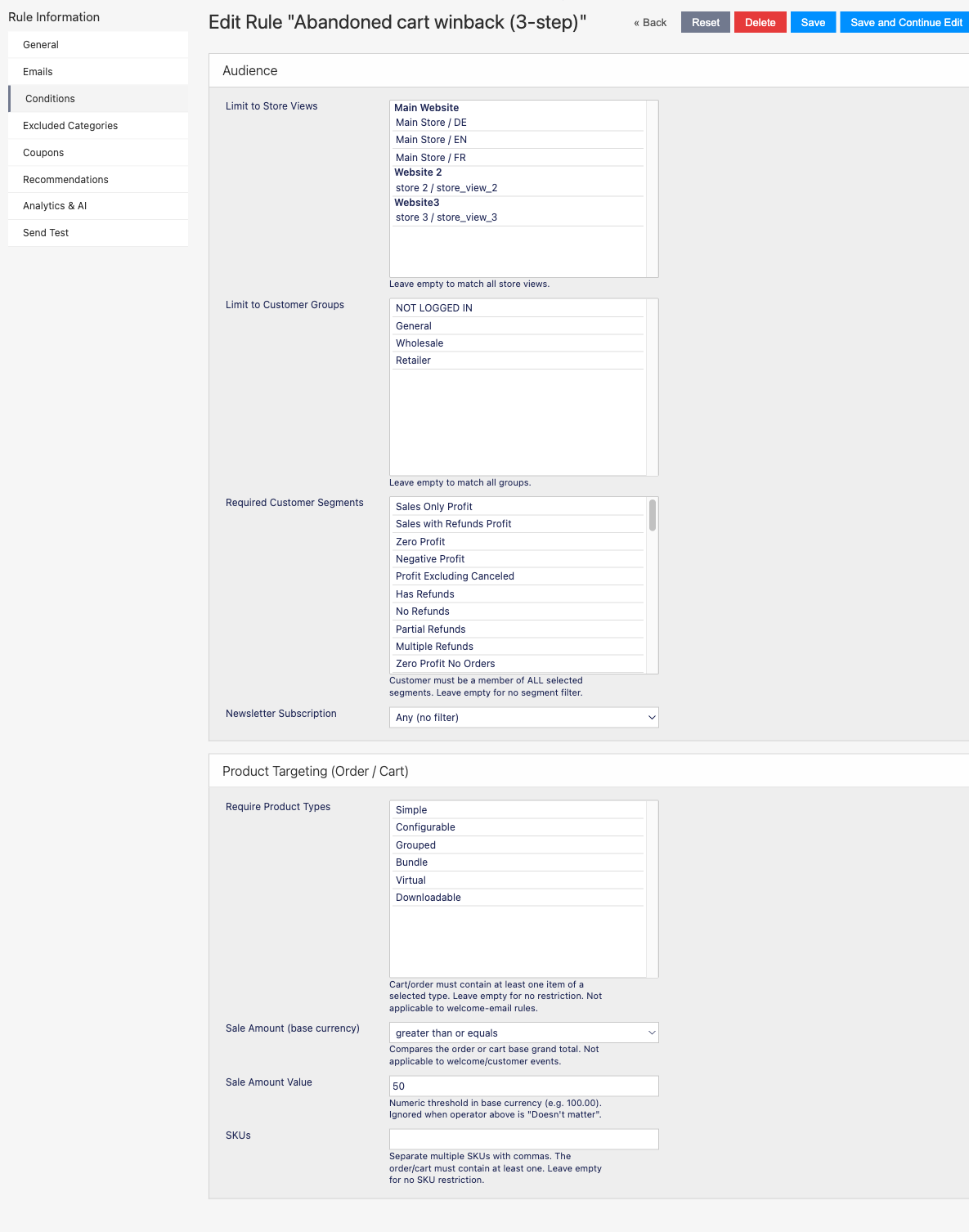
Audience
- Limit to Store Views - restrict to specific store views.
- Limit to Customer Groups - e.g. retail only, or wholesale only.
- Required Customer Segments - the customer must belong to all selected segments (available when customer segments exist on your store).
- Newsletter Subscription - require subscribed / unsubscribed, or any.
Product Targeting (Order / Cart)
- Require Product Types - the cart or order must contain at least one item of a selected type (simple, configurable, bundle, etc.).
- Sale Amount - compare the order or cart grand total with an operator (greater than or equals, etc.) and a Sale Amount Value in base currency.
- SKUs - the cart or order must contain at least one of these comma-separated SKUs.
Product conditions do not apply to welcome / customer-only events (there is no cart to inspect).
5.4 Excluded Categories
Tick any categories the cart or order must not contain for the rule to fire. Useful to skip follow-ups for gift cards, clearance, or restricted ranges.
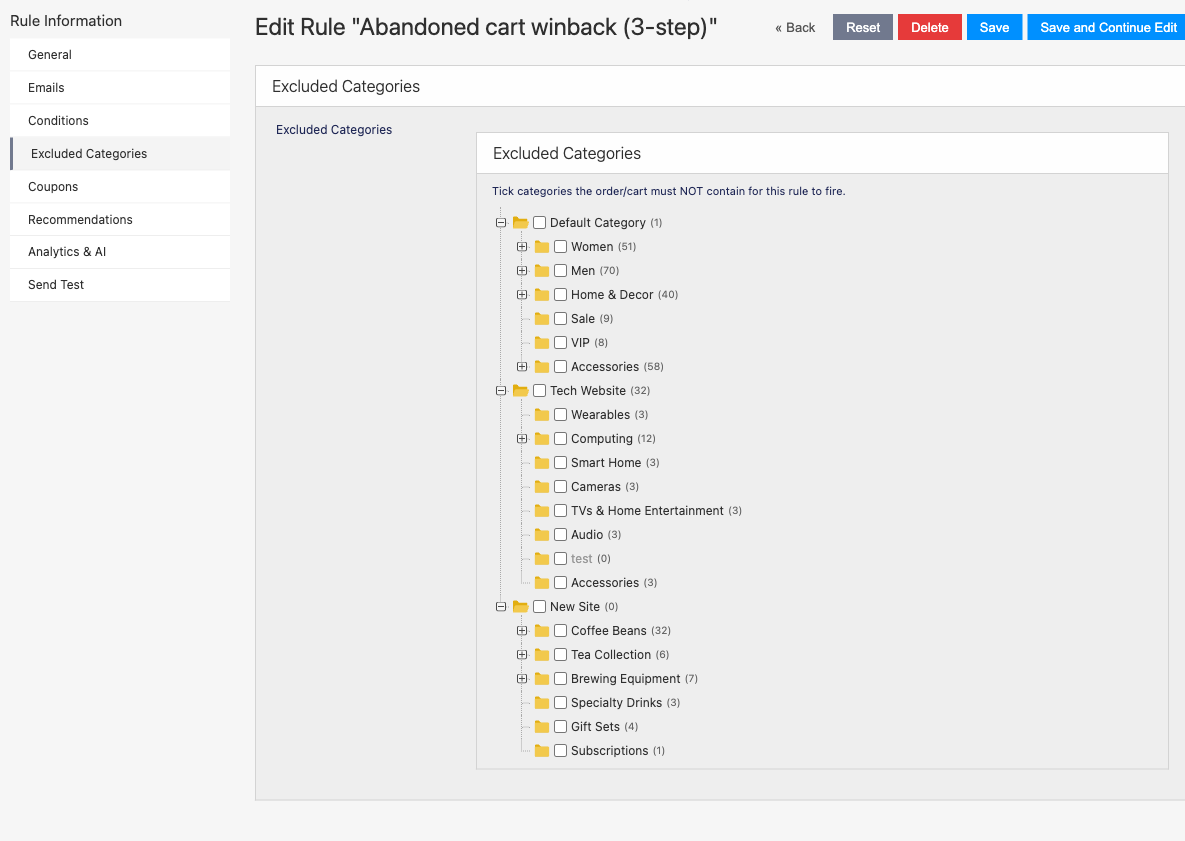
The picker is the standard Maho category tree; expand a branch with the plus icon and tick the categories to exclude.
5.5 Coupons
Attach a unique, single-use discount to the email.
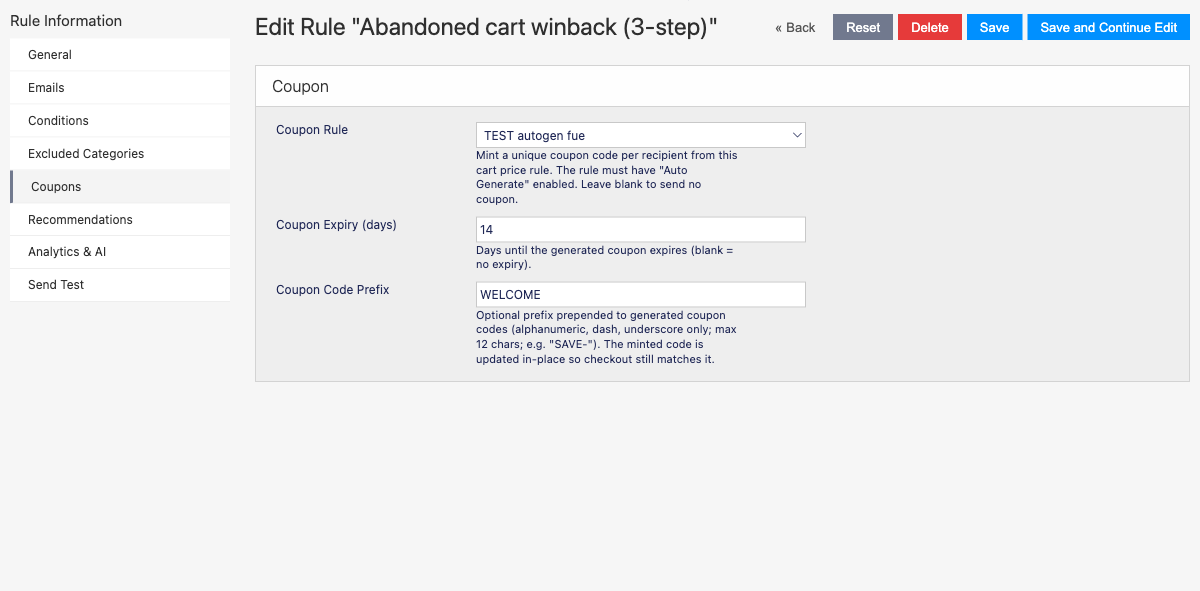
- Coupon Rule - choose a Shopping Cart Price Rule. A unique coupon code is minted from it per recipient at enqueue time and embedded via
{{var coupon_code}}in the template. Leave blank to send no coupon. - Coupon Expiry (days) - days until the generated code expires (blank = no expiry).
- Coupon Code Prefix - an optional prefix prepended to generated codes (alphanumeric, dash, underscore; max 12 chars, e.g.
SAVE-).
Prerequisite. The chosen cart price rule must have Use Auto Generation = Yes (set under Promotions > Shopping Cart Price Rules > Manage Coupon Codes). Without it there is no code pool to draw from and no coupon will be attached. Only auto-generation rules appear in the dropdown.
5.6 Recommendations
Embed a grid of suggested products.
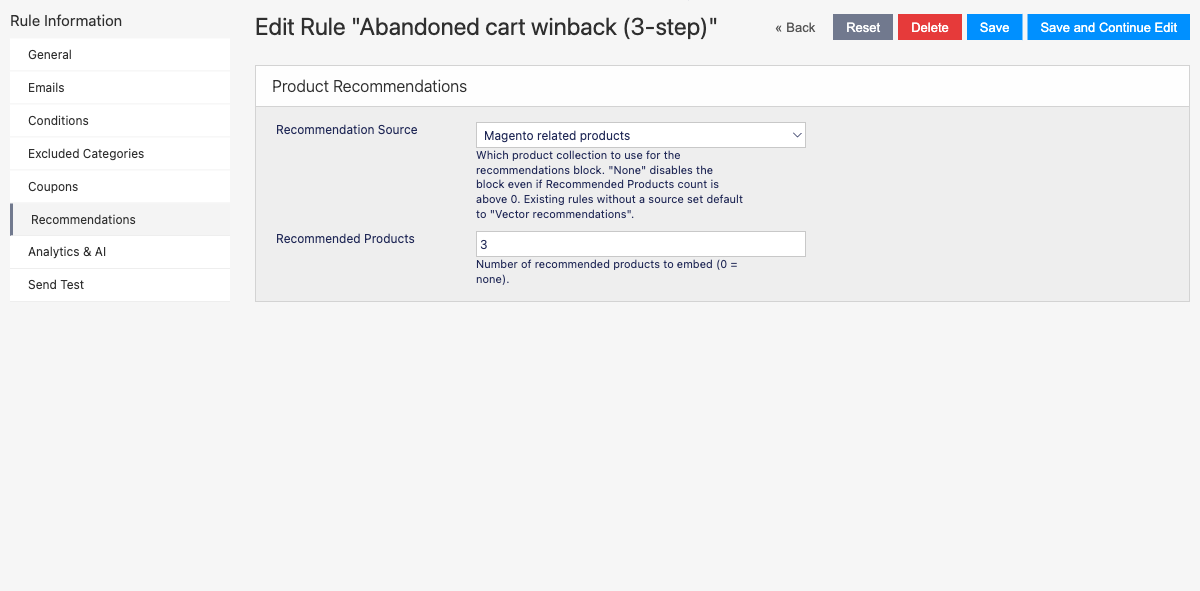
- Recommendation Source - which product collection backs the grid: vector recommendations (when the recommendations module is installed), or native related / cross-sell / up-sell products. Choose None to disable the grid even when a count is set.
- Recommended Products - how many products to embed (0 = none).
The rendered grid is available to templates as {{var recommendations_html}}.
5.7 Analytics & AI
AI subject lines and campaign tracking.
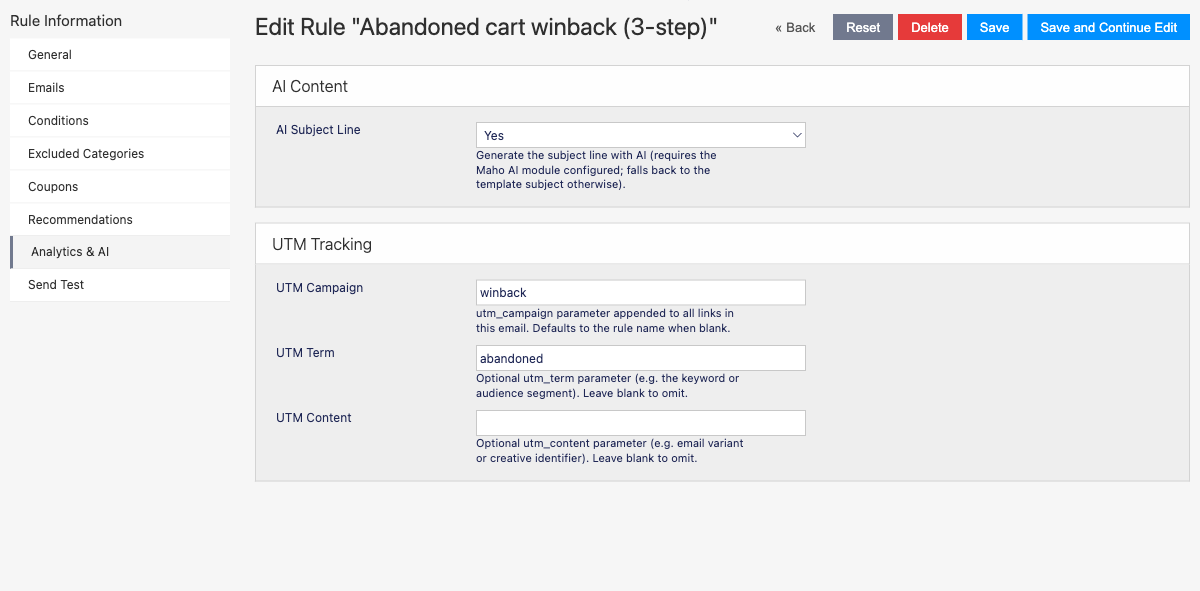
- AI Subject Line - when Yes, the subject is generated by the Maho AI module (cached per rule + context, with no personal data in the prompt). Falls back to the template's own subject when AI is unavailable.
- UTM Campaign - the
utm_campaignvalue appended to every link in the email. Defaults to the rule name when blank. - UTM Term / UTM Content - optional
utm_termandutm_contentparameters for finer analytics segmentation.
Every outbound link automatically carries utm_source=followup and utm_medium=email, so the emails show up cleanly in your analytics.
5.8 Send Test
Preview the rendered email before going live.
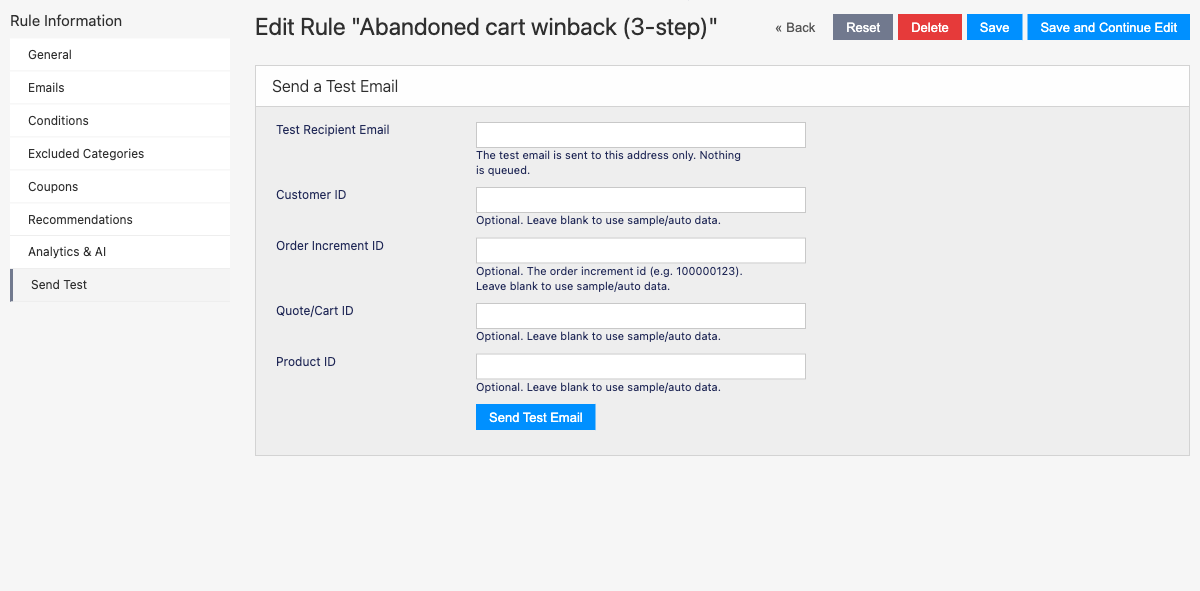
- Test Recipient Email - the test is sent only to this address; nothing is queued.
- Customer ID / Order Increment ID / Quote/Cart ID / Product ID - optional. Supply real IDs to render the email with live data; leave blank to use sample data. For example, give an Order Increment ID to see an order-follow-up email populated with that order.
Click Send Test Email to deliver the preview.
6. Trigger reference
| Trigger | Fires when | Notes |
|---|---|---|
| Abandoned cart | A cart has been idle for the configured threshold | Found by a scan every 15 minutes; respects the max-age setting. |
| Order status change | An order reaches a status | Use the From / To selects on the General tab. |
| Customer welcome (new registration) | A customer creates an account | Classic onboarding email. |
| Stock alert (back in stock / price drop) | A stock-alert subscriber's product comes back or drops in price | Requires the stock-alerts module (see Integrations). |
| Newsletter subscribe | A visitor subscribes to the newsletter | |
| Customer login (once per day) | A customer logs in | De-duplicated to once per customer per day. |
| Customer group changed | A customer's group changes | Use {"from_group":x,"to_group":y} in Trigger Params to target a specific move. |
| Wishlist - product added | A product is added to a wishlist | |
| Wishlist - shared | A wishlist is shared | |
| Customer came back (clicked a follow-up link) | A recipient clicks a tracked link in a previous email | Lets you chain a "welcome back" message. |
| Customer birthday | It is the customer's birthday | Scanned daily at 06:00. |
| Customer inactive for N days | A customer has had no activity for N days | Set N with {"days":30}; scanned daily at 07:00. |
7. The send queue
Follow-up Email > Send Queue shows every scheduled, sent, failed and cancelled email.
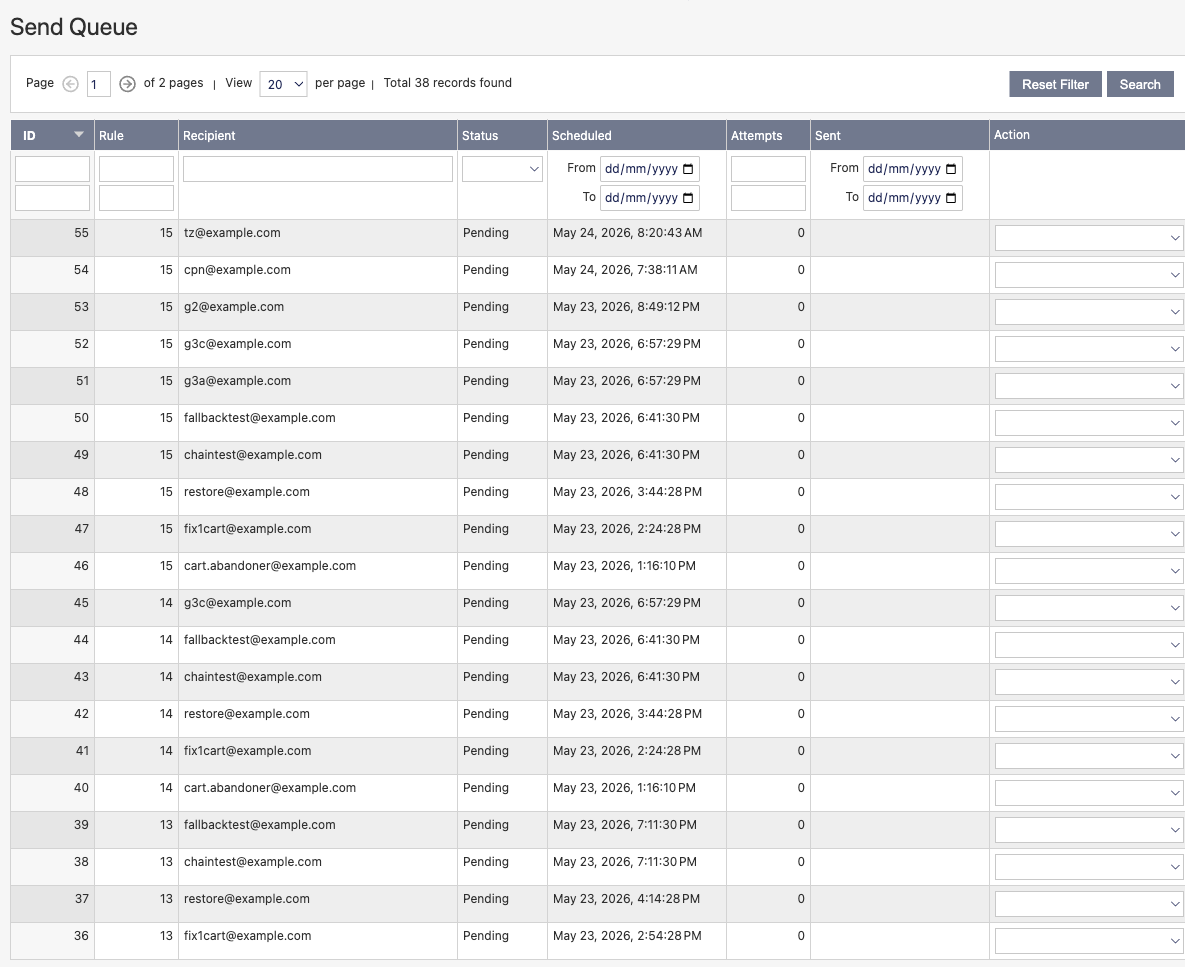
Columns: ID, Rule, Recipient, Status, Scheduled, Attempts, Sent. Filter by any column using the header row. Per-row actions let you Send now, Cancel a pending row, or Requeue a failed one.
Statuses you will see:
- Pending - scheduled, waiting for its send time.
- Sent - delivered.
- Failed - all three attempts failed (requeue to try again).
- Cancelled - cancelled by a cancellation event or manually.
8. Performance report
Follow-up Email > Performance summarises every rule's results.
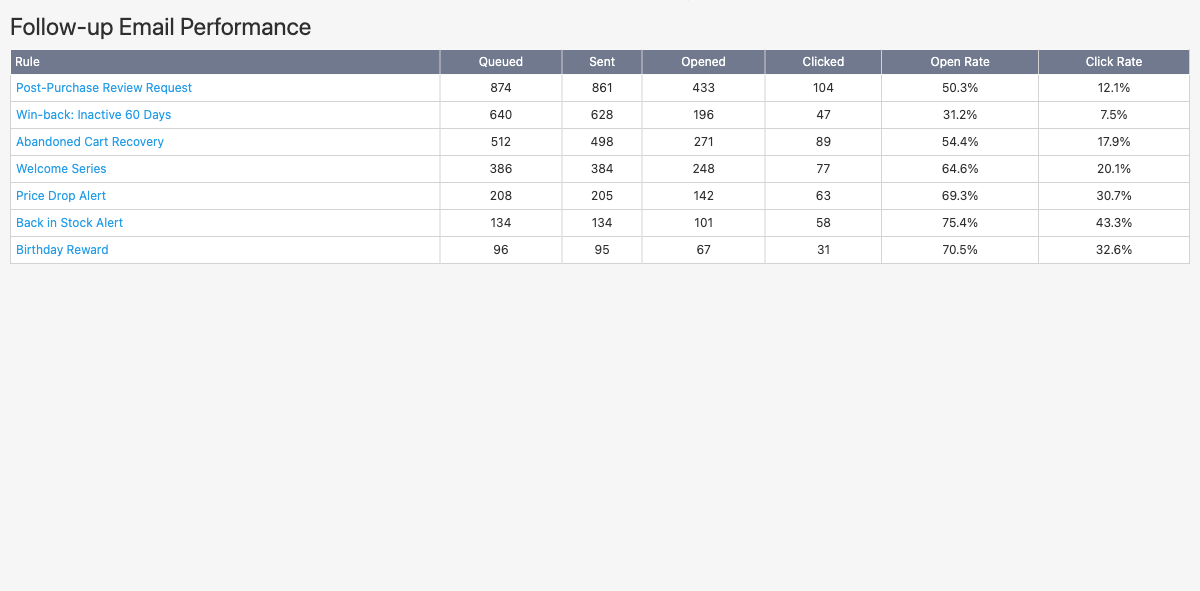
For each rule you get Queued, Sent, Opened, Clicked, plus the derived Open Rate and Click Rate. Deleted rules still appear (labelled "deleted") so historical numbers are never lost. Open and click figures come from the tracking pixel and click-redirect described next.
9. Email templates and power directives
The module ships six responsive, dark-mode-safe templates, registered under System > Transactional Emails so you can clone and customise them:
- Follow-up: Abandoned Cart
- Follow-up: Welcome
- Follow-up: Win-back
- Follow-up: Back in Stock
- Follow-up: Price Drop
- Follow-up: Order Follow-up
Each pulls your store name, logo and accent colour automatically, and every optional block (coupon, recommendations, restore link) is guarded so it never renders empty.
Variables available in templates
| Variable | Contents |
|---|---|
{{var customer_name}} | Recipient's name |
{{var store_name}} / {{var logo_url}} / {{var primary_color}} | Brand tokens |
{{var cart_items_html}} | Rendered cart/order line items (abandoned cart) |
{{var coupon_code}} | The minted coupon code (when a coupon rule is set) |
{{var restore_url}} | One-click cart restore link (abandoned cart) |
{{var cta_url}} | Primary call-to-action link |
{{var recommendations_html}} | Rendered recommendation grid |
{{var product_name}} / product_url / product_image_url / product_price | The subject product (stock alert) |
{{var old_price}} / {{var new_price}} | Price-drop figures |
{{var sequence_number}} | Which step of the chain this email is |
{{var unsubscribe_url}} / {{var unsubscribe_all_url}} | Unsubscribe links |
Power directives
On top of Maho's standard {{var}}, {{depend}}, {{if X}}...{{/if}}, {{store}} and {{template}} tags, these templates support a richer set:
Loops
{{foreach loop="order.getAllVisibleItems()" as="item"}}
  {{var item.getName()}} x {{var item.getQtyOrdered()}}
  - position {{var item_index}} of {{var item_count}}
{{/foreach}}
Inside a loop, <alias>_index (1-based) and <alias>_count are available.
Conditionals (operators == != > >= < <=, or a bare truthy test)
{{if order.getGrandTotal() >= 100}}
  Enjoy free express shipping!
{{elseif order.getGrandTotal() >= 50}}
  You qualify for free standard shipping.
{{else}}
  Add a little more for free shipping.
{{endif}}
Note the close tag is
{{endif}}(not{{/if}}). The{{/if}}form is the simpler boolean conditional inherited from Maho; both work and never collide.
Product thumbnail
{{thumbnail source="product" size="280"}}Value modifiers
{{var item.getPrice()|formatPrice}}       -> $49.00
{{var order.getCreatedAt()|formatDate}}   -> 2026-05-24 09:30
{{var order.getCreatedAt()|formatDate:Y-m-d}}
{{var weight|formatDecimal:2}}            -> 1.25
formatPrice renders store currency, formatDate converts UTC to the store timezone (optional PHP date format), and formatDecimal fixes the decimal places.
10. Tracking and unsubscribe
Every email includes:
- A tracking pixel that records opens.
- Click redirects that record clicks and forward to the real destination (validated to your own host, so they can never be turned into an open redirect).
- A one-click unsubscribe link.
{{var unsubscribe_url}}opts the recipient out of that rule;{{var unsubscribe_all_url}}opts them out of every follow-up. Unsubscribes are persistent and re-checked at send time, so an opted-out recipient is skipped even if a rule already queued them.
All four links (open, click, unsubscribe, restore) are signed with an HMAC token and cannot be forged or guessed.
11. Automation (cron)
The module registers four cron jobs. They run automatically once Maho's cron is configured (the standard php maho cron:run schedule).
| Job | Schedule | Purpose |
|---|---|---|
| Process queue | every 5 minutes | Render and send due queue rows |
| Scan abandoned carts | every 15 minutes | Enqueue follow-ups for newly idle carts |
| Scan birthdays | daily at 06:00 | Enqueue birthday emails |
| Scan inactivity | daily at 07:00 | Enqueue win-back emails for inactive customers |
If emails are not going out, the first thing to check is that Maho's cron is actually running.
12. Integrations
All three are optional and detected at runtime. Nothing breaks when they are absent.
- Maho AI (
mageaustralia/maho-module-ai) - powers the AI Subject Line option. Configure a provider and API key under System > Maho AI first. - Recommendations (a vector-recommendations module) - powers personalised product grids. When absent, the Recommendation Source falls back to native related / cross-sell / up-sell products.
- Stock Alerts (
mageaustralia/maho-module-stock-alerts) - when installed, back-in-stock and price-drop alerts are routed through this engine. If a matchingstock_alertrule exists, the subscriber gets the rich follow-up email instead of the basic stock-alert email. If no rule matches, stock-alerts still sends its own email, so a subscriber is never silently dropped.
13. Troubleshooting
| Symptom | Likely cause and fix |
|---|---|
| The admin menu / rules do not appear | composer dump-autoload -o was not run after install. Run it, then php maho cache:flush. |
| Rules never fire / queue stays empty | Maho cron is not running. Confirm php maho cron:run is scheduled. |
| Queue rows are Pending but never sent | The process-queue cron is not running, or Enabled is set to No in configuration. |
| Coupon code is empty in the email | The chosen cart price rule does not have Use Auto Generation = Yes, or no Coupon Rule was selected on the Coupons tab. |
| AI subject falls back to the template subject | The Maho AI module is not installed/enabled, or no provider/key is configured. |
| Recommendation grid is empty | Recommendation Source is None, Recommended Products is 0, or the source collection returned no products. |
| Abandoned-cart emails never send | Check the idle hours and max cart age settings, and that the 15-minute scan cron is running. |
| A shopper got a follow-up after buying | Add the relevant completion event (e.g. order placed / a specific order status) to the rule's Cancellation Events. |
For developer-facing details (extension points, MJML sources, the template filter internals), see README.md.